
 Facebook
 Instagram
 X (Twitter)
 TikTok
 Pinterest
 YouTube
 LinkedIn
 Threads
 Google Business Profile
 Telegram
 Discord
The Composer
Open with Calendar → New post, from a product page ("Schedule post"), or from the Products list bulk action. The composer has three modes:
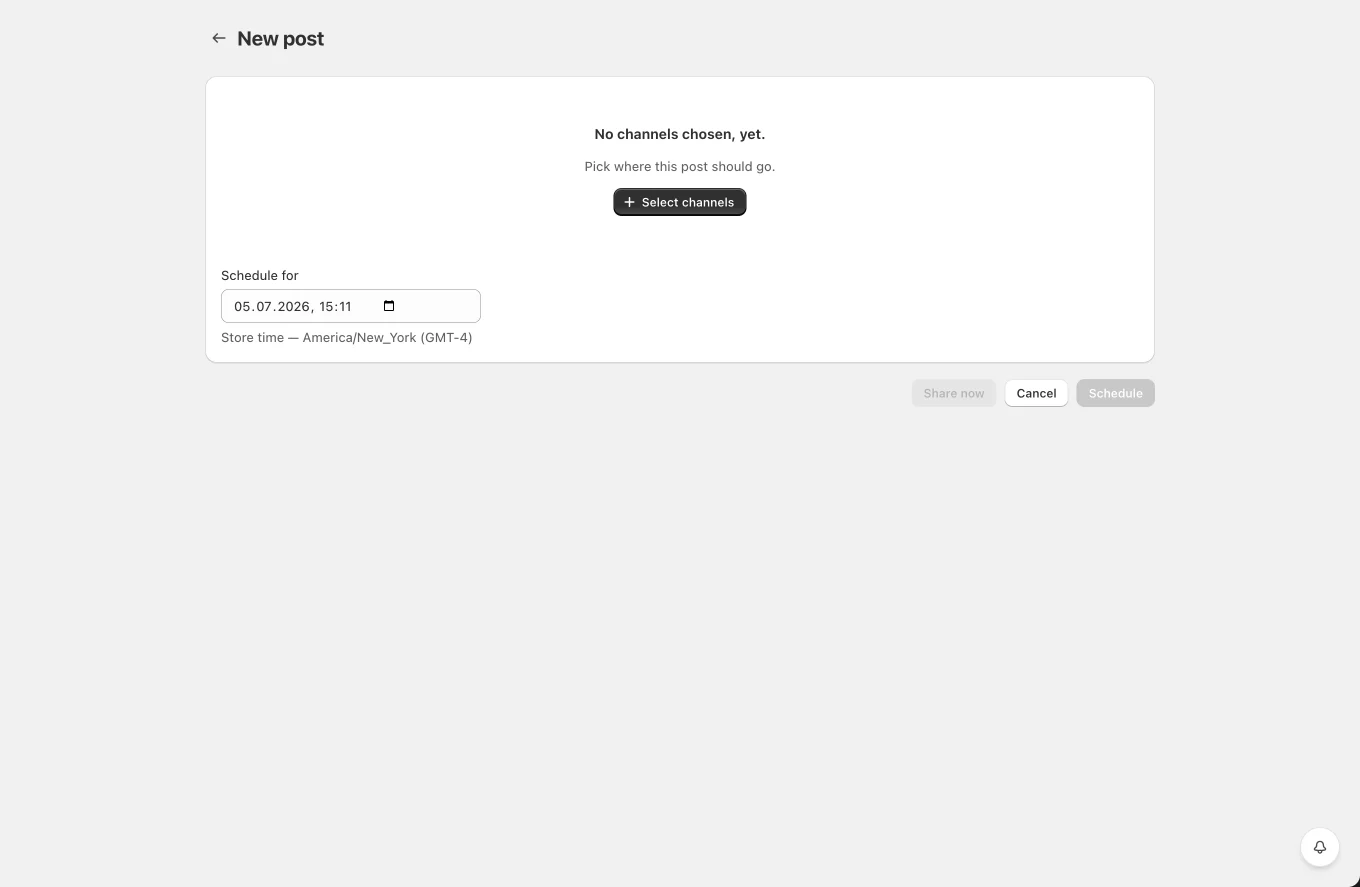
- New post, a free post to any of your channels (no product attached, so shortcodes and product media options are hidden).
- Schedule post (product-bound), opened with a product; a product strip (image, title, price) shows at the top and all product media/link/shortcode options are available.
- Edit post / Reshare post, edit a scheduled post, or duplicate a published one as a fresh post (prefilled, scheduled an hour from now by default).
Prefilled from your Settings
When you open the composer for a product (from the product page, the bulk action or Schedule this product), every channel arrives already configured like your automations: the content/title template (channel custom > network Settings), attach media with the configured media type, attach link, first comment, and network extras (Telegram silent/button text, TikTok posting options, Google Business button). Change anything freely, the prefill is just a starting point. New planner templates start the same way.
Channels bar
Selected channels appear as round avatar tabs at the top; the active one has a green ring. Hover a tab to reveal a red × that removes the channel (the last one can't be removed). + Add opens the Manage channels popover with search, Select all, and a card list of all your channels. When no channel is chosen yet, the composer shows a centered Select channels button instead, tick as many channels as you want in the picker and press Add N channels to open the composer with them.
Click a tab to edit that channel's version of the post. With more than one channel, a Sync content checkbox appears, when on, text/media/link edits mirror across all selected channels; turn it off to tailor each network.
Fields (per network)
For a product post, each channel's Content (and title) opens prefilled from your templates, the channel's custom content when set, otherwise the network's template from Settings, ready to send or tweak. Every network gets a Content editor (with shortcode chips and the “Use AI” menu when a product is attached; product-bound posts also get a “Write with AI” instant caption generator, see the docs). Depending on the network you'll also see:
- Attach media, with a product: Product image / All attached images / Custom media (opens the media library) / Generate a video (the docs). Networks that require media (Instagram, Pinterest, YouTube, TikTok) always show the media section.
- Attach link, Product URL or Custom URL (shortcodes allowed). On Facebook, Threads and LinkedIn media and link are mutually exclusive, the disabled one explains why in a tooltip.
- Post a first comment, Facebook, Instagram (not Stories), Threads.
- Title, Pinterest (pin title), YouTube (video title), TikTok (caption).
- Telegram extras, Button text (shown when Attach link is on): the link posts as an inline button under the message, like Settings → Telegram's "Read More" button; leave it empty to append the link as plain text. Silent notification delivers the message without a sound.
The composer validates per network before letting you schedule, e.g. "Instagram requires an image or video.", "Google Business requires some text."
Media library
Custom media opens your store's file library: upload by drag-and-drop (images/videos), search by filename, and multi-select. Selected media shows as thumbnails you can remove.
Scheduling
Pick the date/time in Schedule for (defaults to one hour from now), then:
All dates and times in Yoomru are your store's timezone (Shopify → Settings → General), the same clock the Shopify admin shows, not your browser's. The input's help text shows which timezone that is.
- Schedule, creates the posts for that time.
- Share now, publishes immediately.
- Cancel, back to the calendar.