
 Facebook
 Instagram
 X (Twitter)
 TikTok
 Pinterest
 YouTube
 LinkedIn
 Threads
 Google Business Profile
 Telegram
 Discord
Connecting channels
Go to Channels → Add channel. Each network row has a short description and a Connect button.
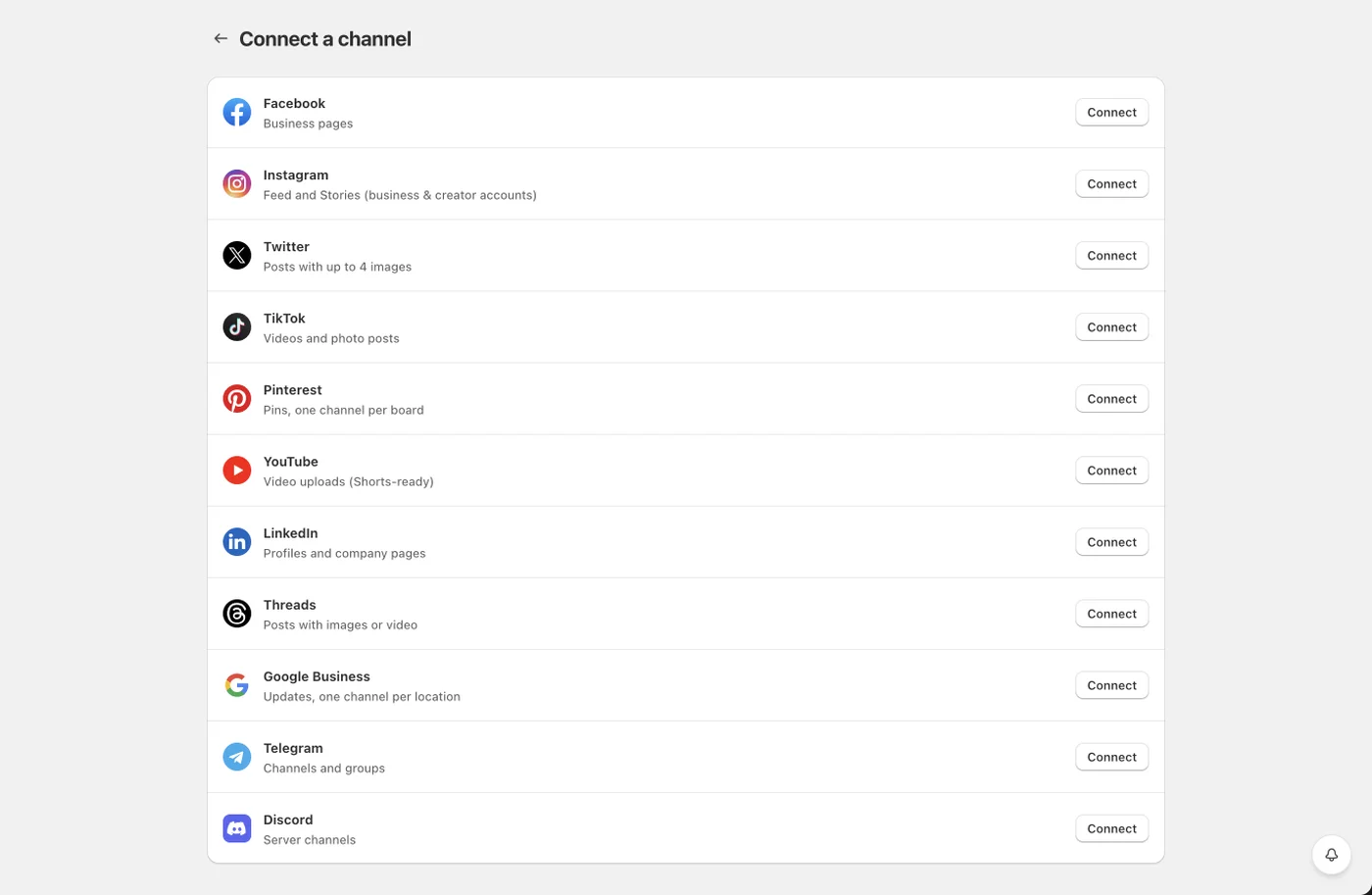
OAuth networks
Facebook, X, TikTok, Pinterest, YouTube, LinkedIn, Threads and Google Business open a login popup. After you approve access, Yoomru fetches your accounts and shows a selection screen:
- Every account/page/board/location found is listed with its picture, name and type.
- Accounts already connected are marked "Already added" and locked. Confirming them again just refreshes their name, picture and access token, useful after a password change.
- Use Select all or pick individual rows, then press Add N channels.
Instagram, two ways to connect
Pressing Connect on Instagram opens a chooser:
- Login with Facebook business, for an Instagram Business/Creator account that is linked to a Facebook Page. Posts go through the Facebook Graph API with a long-lived page token.
- Login with Instagram, for a professional Instagram account with no Facebook Page needed. You log in on instagram.com directly; the token lasts ~60 days and Yoomru refreshes it automatically before it expires.
Either way, each Instagram account creates two channels: a regular feed channel and a Story channel (marked with a small story-frame badge on its avatar). You schedule Stories by posting to the Story channel, there is no per-post "story" toggle.
Telegram (manual)
Create a bot with @BotFather, add the bot to your channel or group as an admin, then in the connect dialog enter:
- Bot token (looks like
123456789:ABCdef...) - Channel, the public
@usernameor the numeric chat id (e.g.-1001234567890)
Once the token is pasted, Yoomru suggests channels/groups from the bot's recent activity, click one, or type the channel yourself (@username, a t.me/… link or the numeric chat id all work; private channels need the numeric id). The token and chat are validated before saving, so typos surface immediately. Bot tokens don't expire.
Discord (manual)
In your Discord channel: Settings → Integrations → Webhooks → New Webhook → Copy Webhook URL, then paste it into the connect dialog. The URL is validated on save and never expires.
Channel info page
Clicking a channel row opens its info page (same layout as the planner info page): an activity log of every post sent to that channel (click through to the post, paginated), overview counts (posts / published / failed), and a details card, network, auto-share status and collection filter, custom content flag, labels. Settings is the header's primary action; Reauthenticate (or Reconnect on a disconnected channel) jumps straight into that network's login and preselects just this channel on the confirmation screen, credentials refresh in place, settings and scheduled posts are kept. Delete asks for confirmation.
Reconnecting
If a network rejects a channel's credentials (revoked access, expired token that can't refresh), Yoomru disables the channel and shows a red "Reconnect needed" badge plus a Reconnect button in the Channels list. You also get a notification (the bell, bottom-right) the moment a channel is disabled. Reconnect runs the same connect flow; confirming the existing account re-activates the channel in place, your settings, labels and scheduled posts are kept.